 PAINITE
Enhancements
What each enhancement does
Six enhancements, each powered by a model picked in side-by-side tests on real photos. Use one, or chain up to four in one pass.
Denoise
Removes grain from high ISO and low-light photos and cleans up JPEG compression, while keeping fine texture. Start at 0.5. Raise it for very noisy photos, and lower it if skin or foliage starts to look smooth.


Model: SCUNet (real-world GAN). CLI: --op denoise.
Sharpen
Restores crisp edges and detail to a slightly soft photo, without the halos of a classic sharpening filter. Best for mild softness from a lens, light diffraction or resizing. For a clearly blurred photo, use Unblur.
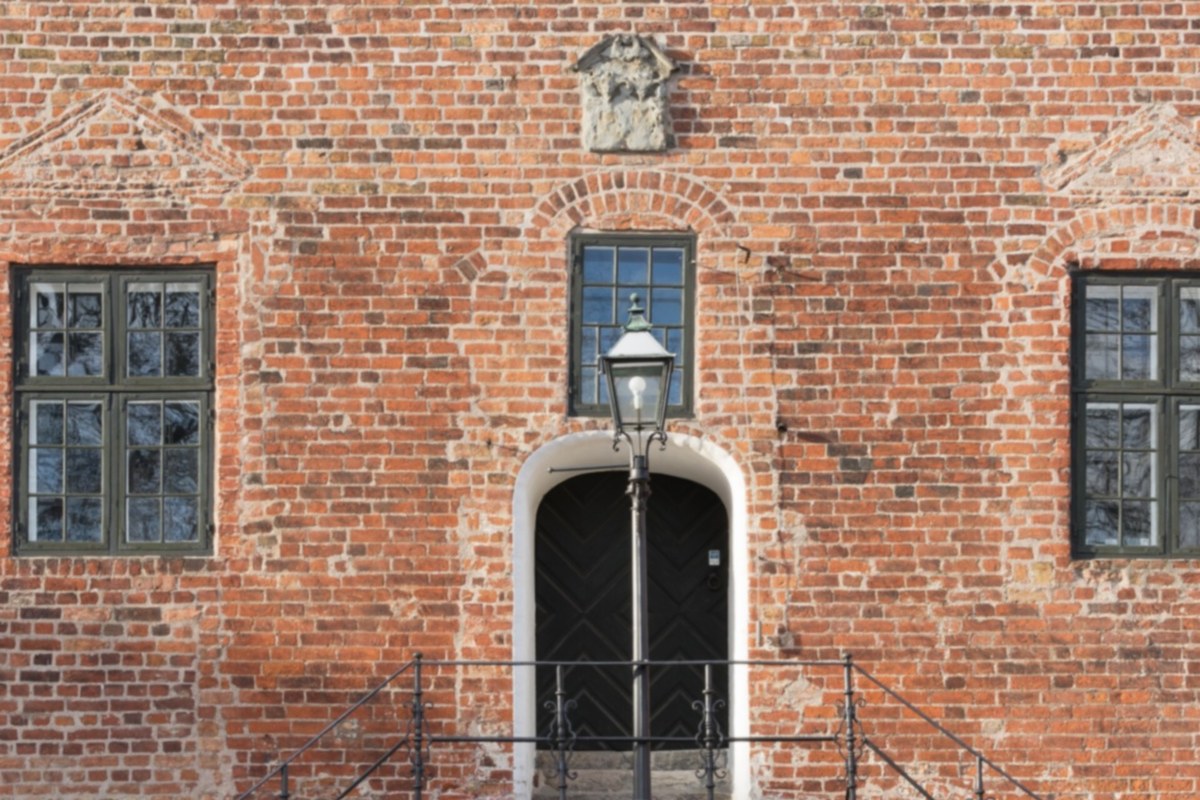
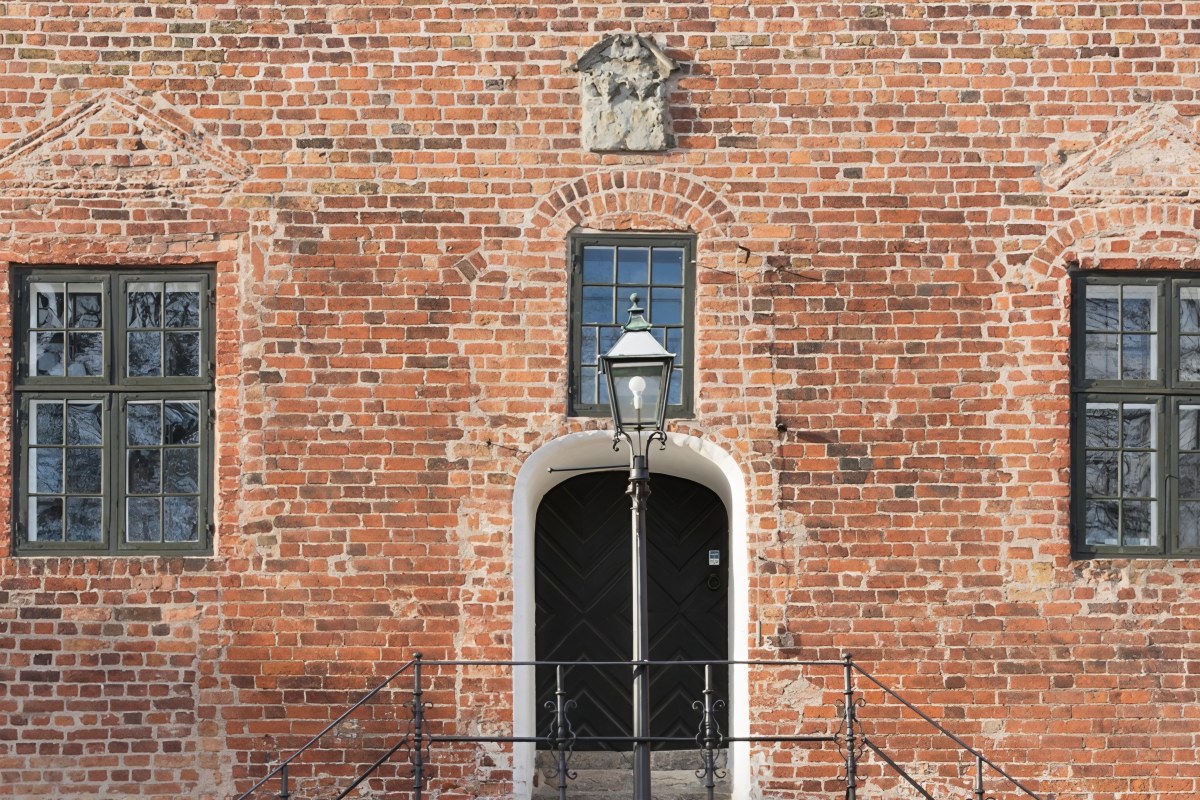
Model: Real-ESRGAN 2×, then scaled back to the original size. CLI: --op sharpen.
Unblur
Called Deblur in the Mac app.
Recovers photos ruined by blur. There are two kinds of blur, and each has its own model. PAINITE can't tell them apart reliably, so you choose:
Motion
Edges are smeared in one direction, sometimes with double edges. Caused by camera shake or a subject that moved.
Mac: Deblur, Motion. CLI: --op unblur_motion.
Focus
Everything is evenly soft in every direction, and points of light become discs. Caused by missed focus.
Mac: Deblur, Focus. CLI: --op unblur_focus.
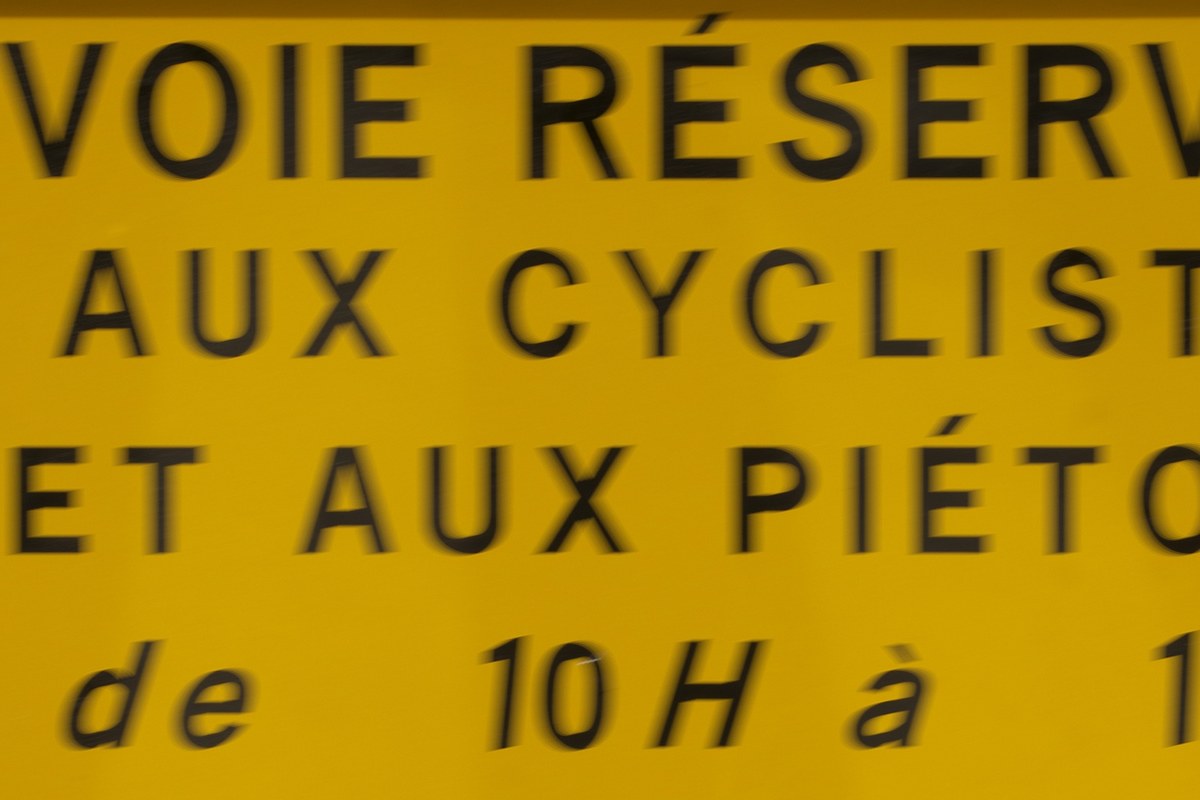
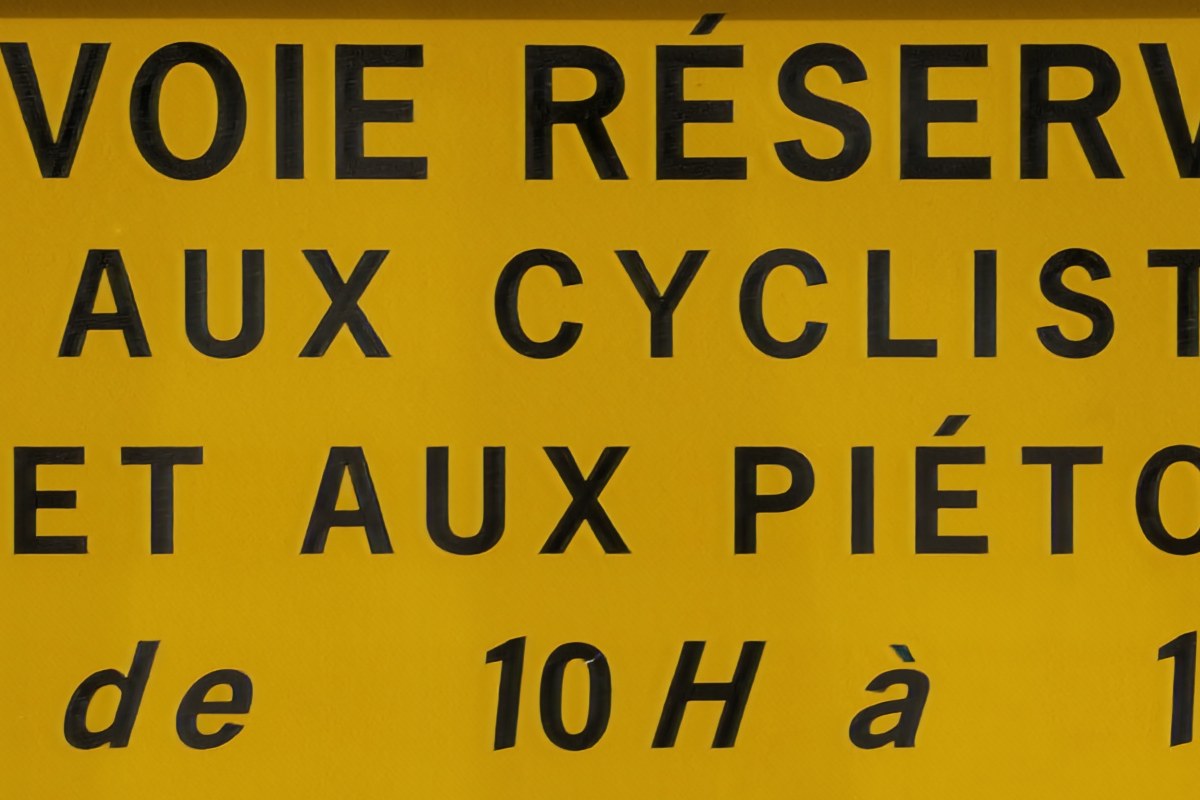
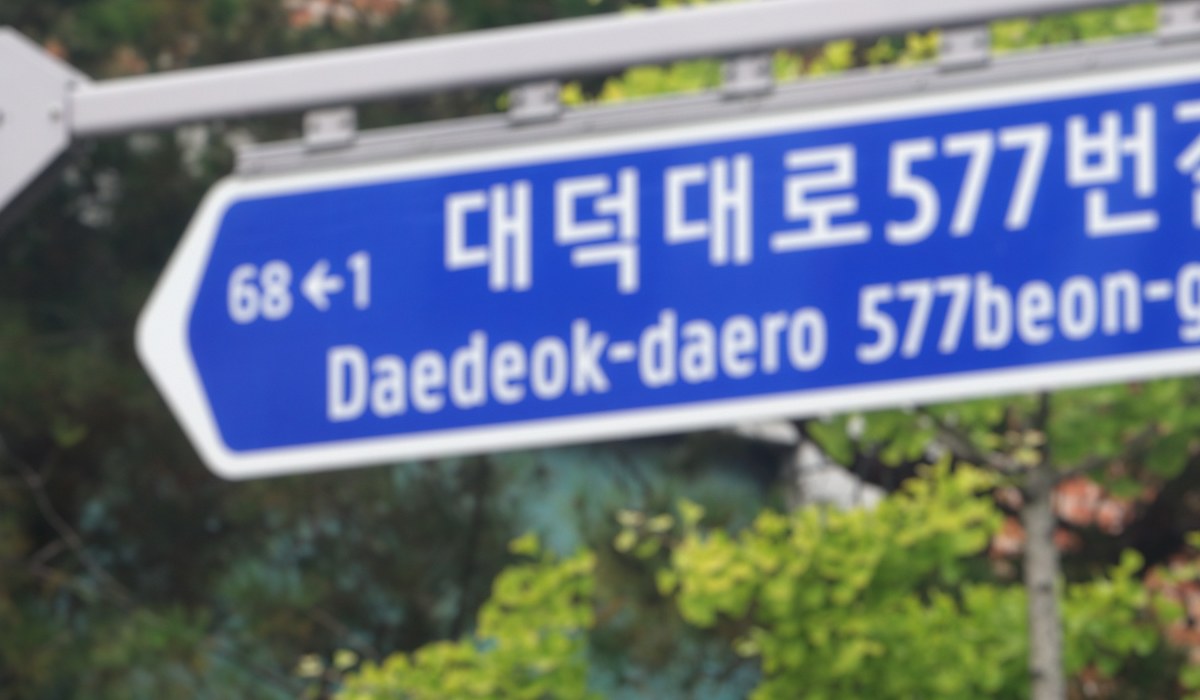
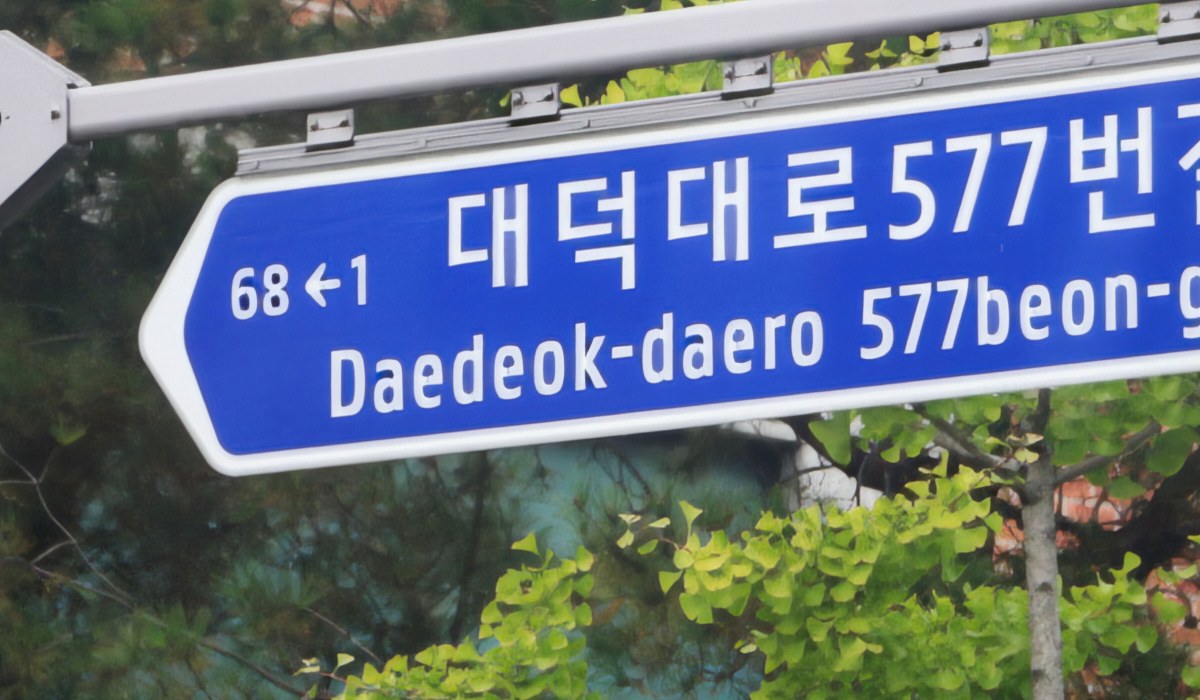
If the result barely changes, try the other kind. Unblur works best on moderate, even blur. Strong or rotating shake, or blur on only one moving subject, improves less. Unblur's strength defaults to 1.0.
Motion unblur is for non-commercial use only. Its model (Stripformer) is licensed for non-commercial use. Focus unblur's model (LaKDNet) is AGPL-3.0. See model licenses.
Face
Called Faces in the Mac app.
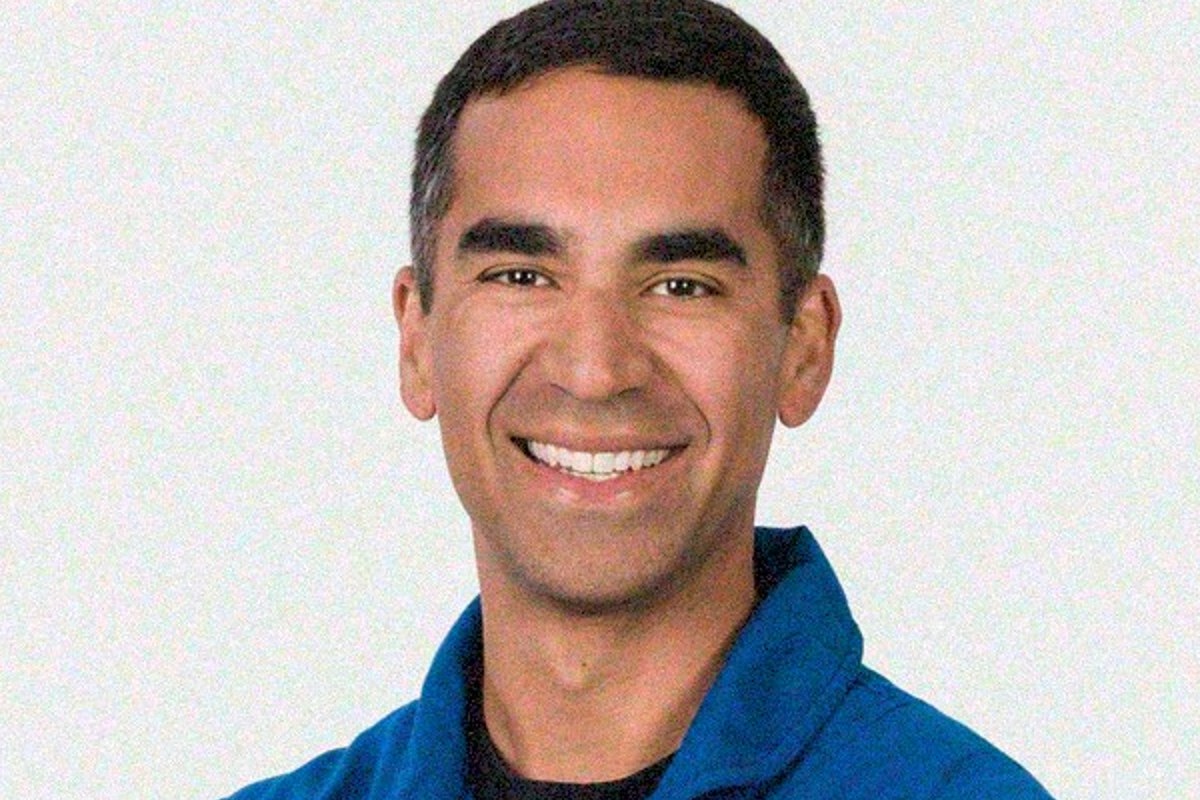
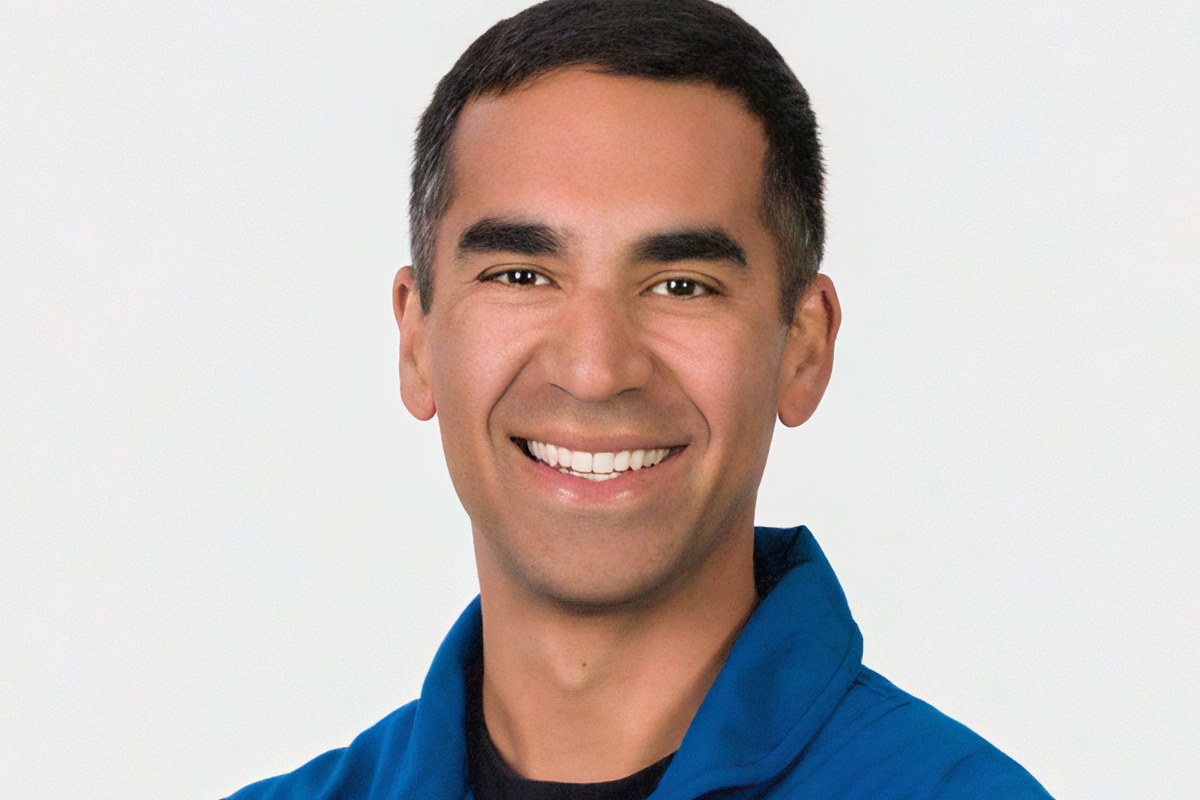
Finds faces and restores them: eyes, skin and hair become clear and natural, while the rest of the photo is left exactly as it was. Good for old prints, small faces in group photos and soft portraits. A photo with no faces comes back unchanged.
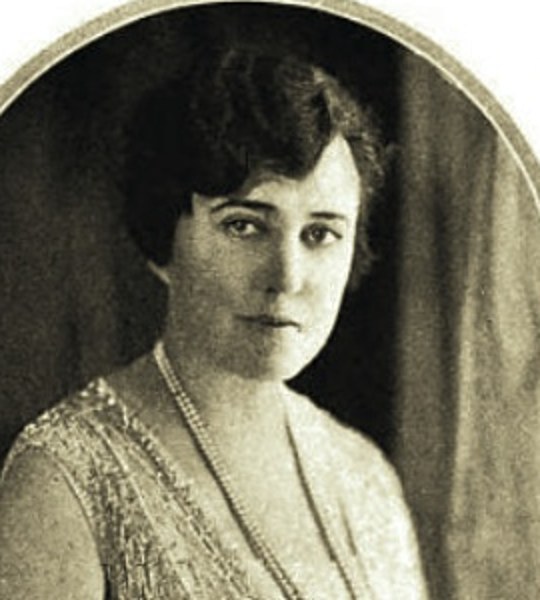
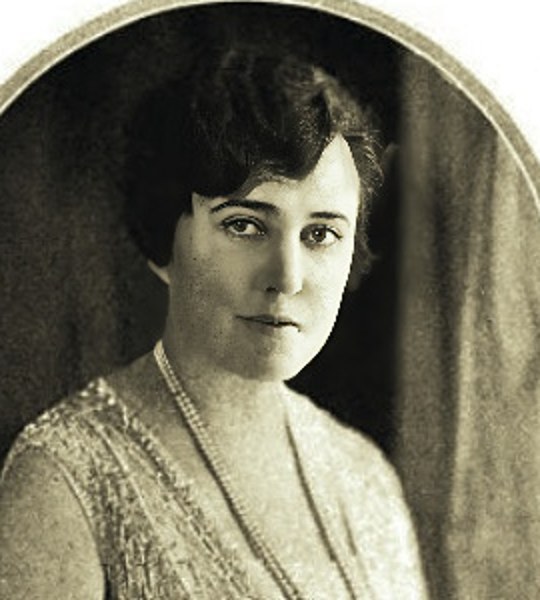
- Faces from 128 to 1024 pixels tall are restored. Only the face itself changes: hands, arms, hair and background next to it keep their original pixels. In the Mac app, Show faces marks restored faces in green and skipped ones in dashed orange.
- Strength blends the restored face with the original. 0.5 is subtle; 1.0 gives the strongest restoration.
Model: GPEN-BFR-1024 with RetinaFace detection. CLI: --op face.
Upscale 2×
Doubles the width and height (four times the pixels) and adds real detail, so you can crop more or print larger. It also cleans up JPEG artifacts. Output is limited to 192 megapixels.
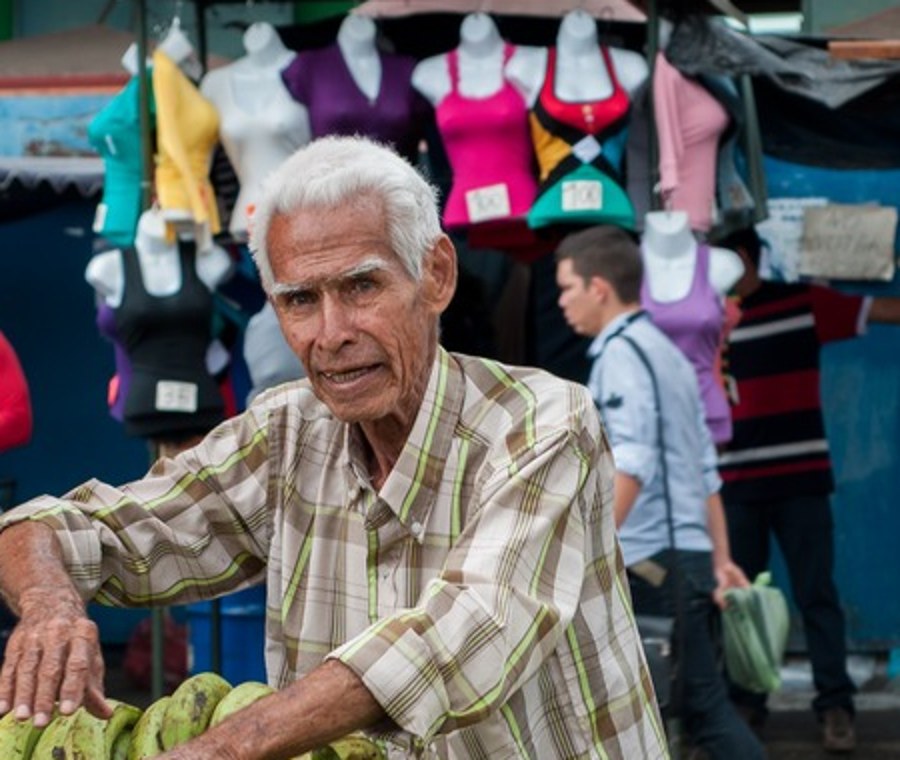
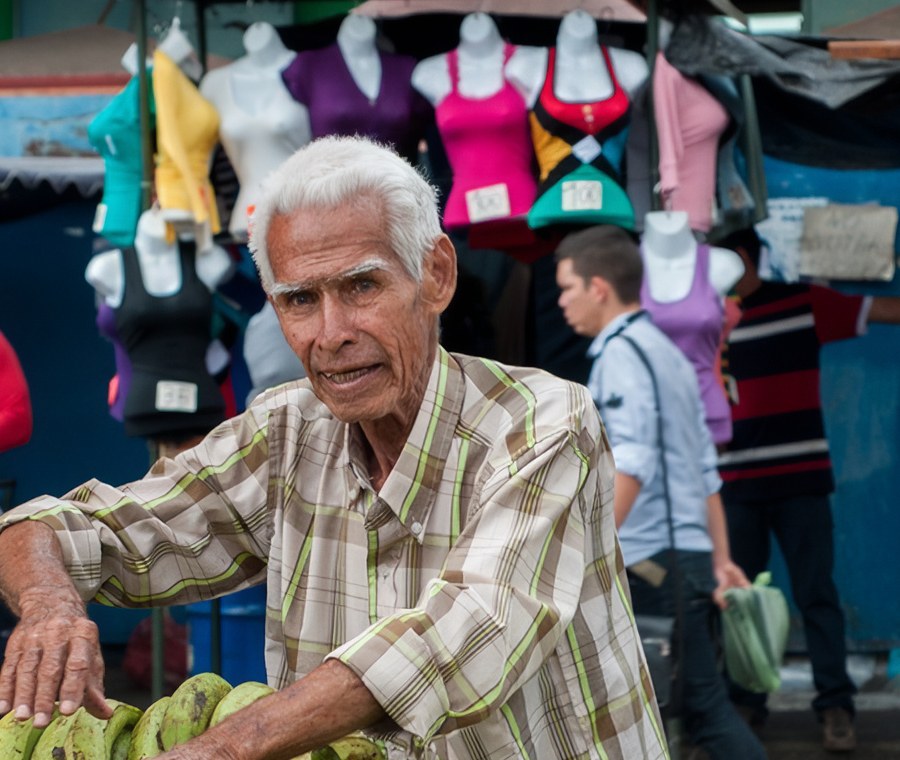
Model: 2× NomosUni ESRGAN. CLI: --op upscale2x.
Combining steps
Steps run top to bottom in one pass. A good order is Denoise → Unblur → Sharpen → Face → Upscale: remove noise first so the other steps don't amplify it, and upscale last. The Mac app's presets follow this order.
| Preset | Steps | Use for |
|---|---|---|
| Clean Up | Denoise 0.5 | Everyday noise and JPEG artifacts |
| High ISO | Denoise 0.7, Sharpen 0.25 | Night, indoor and concert photos |
| Portrait | Denoise 0.5, Faces 0.5 | People |
| Rescue Blur | Deblur (Motion) 0.5, Sharpen 0.2 | Shaky shots |
| Print 2× | Denoise 0.4, Sharpen 0.2, Upscale 2× | Large prints and heavy crops |
On the command line, the same as Print 2×: painite enhance --op denoise:0.4,sharpen:0.2,upscale2x -o out/ photo.tif
Sample photos are public domain or CC0, from Wikimedia Commons. Sources and how each was made are listed in CREDITS.md.